Videos with multiple speakers can be difficult to turn into clean, engaging clips. The active speaker may change quickly, people may interrupt each other, and someone who is important to the conversation may not be speaking at every moment.
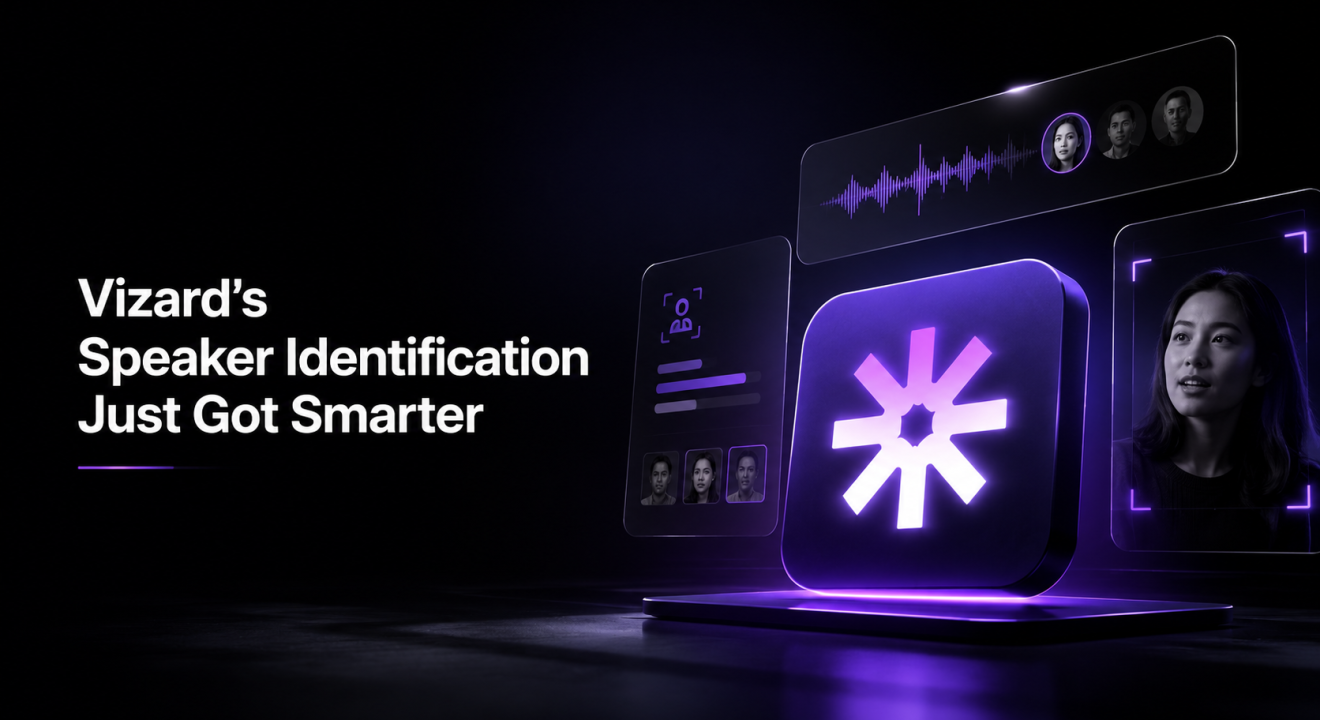
Vizard’s updated Speaker Identification model is designed to handle these situations more accurately. It can better recognize who is speaking, follow speaker changes throughout a video, and automatically create cleaner layouts for clips with multiple people.
More Accurate Speaker Identification
Speaker identification is not as simple as detecting a face on screen. A video may include several visible people, overlapping voices, camera cuts, background noise, or speakers who move in and out of frame.
The updated model uses more context from both the audio and the video to make better decisions. Instead of relying on a single moment, it looks at patterns across the video, including voice activity, facial movement, speaker transitions, and the consistency of each person’s appearance.
This helps Vizard more accurately connect a voice with the correct person on screen, especially in interviews, podcasts, webinars, and panel discussions.
The result is more reliable speaker tracking and fewer incorrect layout changes when the conversation moves from one person to another.
Show Only the Person Who Is Speaking
By default, Vizard now focuses the clip on the active speaker.
When one person is speaking, Vizard automatically keeps that person visible and removes inactive speakers from the layout. As the conversation changes, the frame updates to follow the next speaker.
This creates a cleaner viewing experience and makes the clip easier to follow, especially on vertical platforms where screen space is limited.
For most talking-head videos, interviews, and podcasts, this default setting helps keep the audience focused on the person delivering the message.
Choose Which Speakers Stay in the Clip
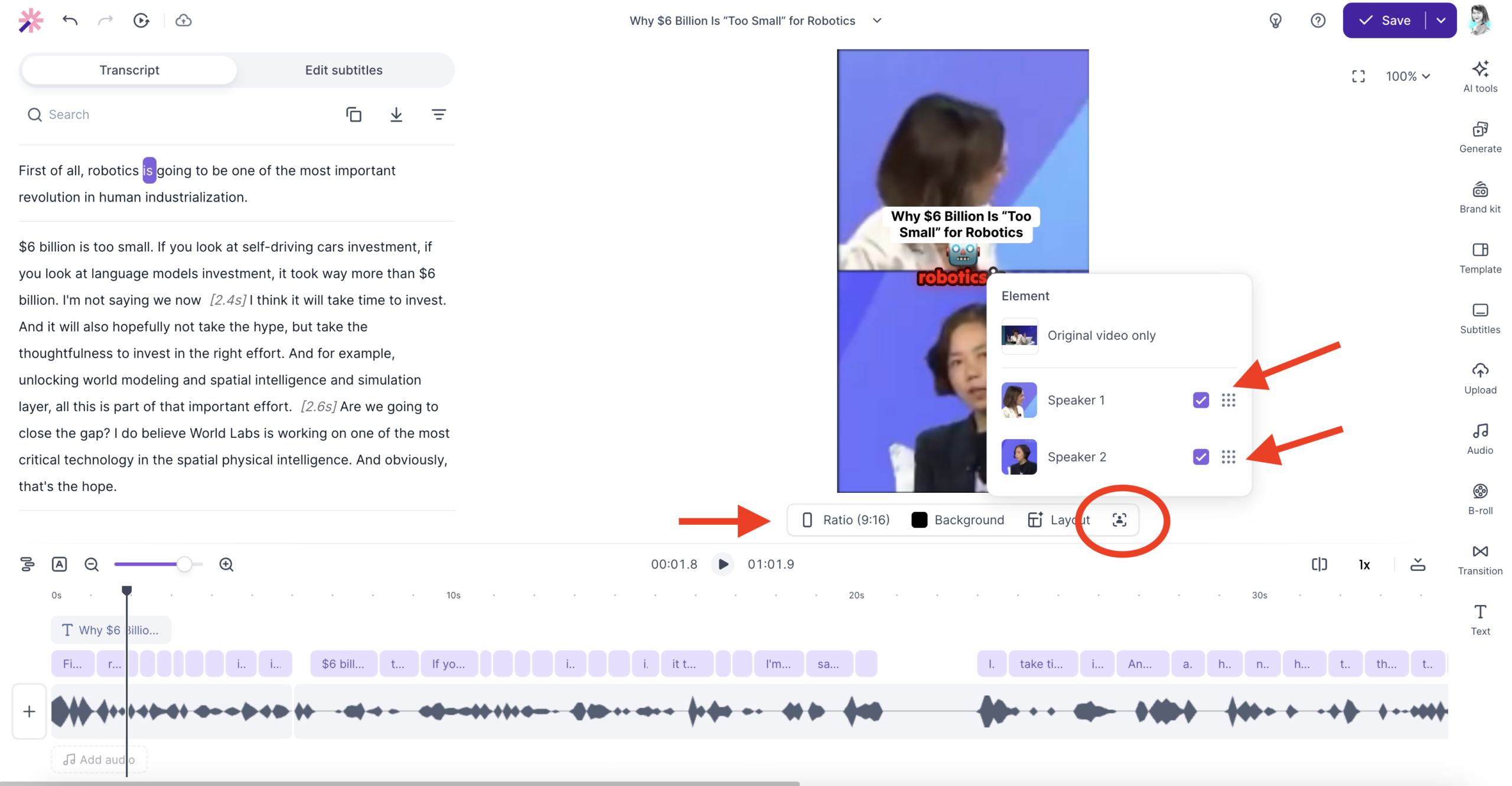
Sometimes, the active speaker is not the only person you want viewers to see.
For example, you may want to show both the interviewer and the guest, keep a co-host visible throughout the conversation, or include someone’s reaction even when they are not speaking.
You can customize this directly in the Vizard editor.
Open the clip in the editor and select the speakers you want to include. Any selected speaker will remain visible in the clip, whether or not they are speaking at that moment.
This gives you more control over the final layout while still benefiting from Vizard’s automatic speaker detection.
You can use the default active-speaker view for a focused, dynamic clip, or keep multiple speakers on screen when reactions and interaction are important to the story.
Better Automation, More Creative Control
The goal of Speaker Identification is not just to automate cropping. It is to make multi-speaker editing faster without taking control away from the creator.
Vizard can now do a better job of identifying the active speaker and automatically building a clear layout. When you need something different, you can adjust the selected speakers in the editor and create the exact composition you want.
That means less time manually reframing clips, fewer corrections, and more flexibility for interviews, podcasts, webinars, meetings, and other multi-speaker content.
Try the updated Speaker Identification model in Vizard and create cleaner multi-speaker clips with less manual editing.